HomearrowDestinationarrowHow to install eSIMarrowInstall eSIM on Android

How to install
e-SIM on your Android device

The following instructions will guide you through the installation process. First, it is very important that your handset has an active internet connection (preferably a WiFi connection). Your e-SIM will not be able to activate without a good internet service. Also, you must check and ensure that your phone is compatible with an e-SIM.
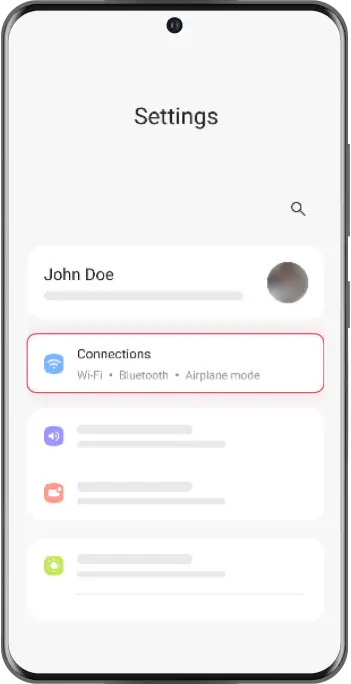
STEP 1
Settings
Go to your phone settings and then to “Connections”. Verify that you have a stable internet connection (Wi-Fi or mobile data).
STEP 2
SIM card Manager
When you enter “Connections”, look for “SIM card manager” to find your eSIM installation options.
STEP 3
Add your eSIM
Under “eSIMs”, select “+ Add eSIM” to start the installation process of your new mobile plan.
STEP 4
Installation Options
Select “Scan QR from service provider”. Have the QR code ready, either printed or on another device. This code will be sent to your email when you make your purchase.
STEP 5
Scan the QR code
Scan the QR code we sent to your email by pointing the box shown on the screen over the QR code. Wait a few seconds while your new mobile plan is identified.
STEP 6
Add your plan
Wait a few seconds until the plan is identified. Press “”Add”” to add it to your device.
STEP 7
Label your plan
Your eSIM is now installed! If you want to change the name of your eSIM, click on your new plan and select the option that says “Name”.
Step Visual
How to install
Your browser does not support the video tag.
Troubleshooting
Still have issues?
  • Ensure a stable Wi-Fi connection throughout the setup.
  • Verify the accuracy of entered details, particularly for manual configurations.
  • Restart your device and revisit the installation steps.
  • For persistent issues, reach out to your service provider’s customer support.
If you are still facing issues, check out our step-by-step guides for Apple and Android Devices, or speak to our customer support team for further help and guidance.